claude-plugin
Installing the Recharm Plugin for Claude
This guide walks you through installing the Recharm plugin in the Claude desktop app by adding our marketplace from GitHub, installing the plugin, and connecting it to your Recharm account.
The whole process takes about 2 minutes.
Prerequisite
[!IMPORTANT] Make sure you are logged into Recharm before you start. The final step authorizes Claude to access your Recharm account, so you need an active Recharm session in your browser. If you don’t have an account yet, sign up at recharm.com first.
Step 1 — Open Cowork
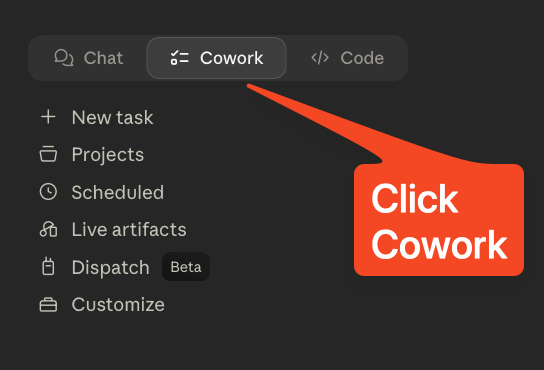
In the Claude app, click the Cowork tab at the top.
Step 2 — Open Customize
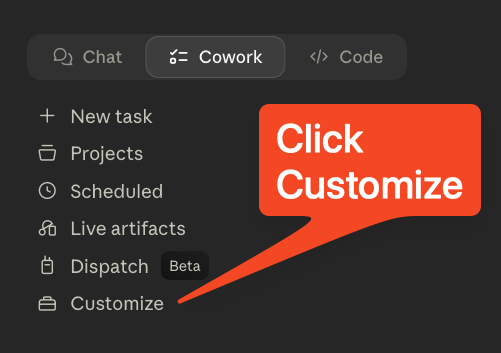
In the Cowork sidebar, click Customize.
Step 3 — Add a marketplace
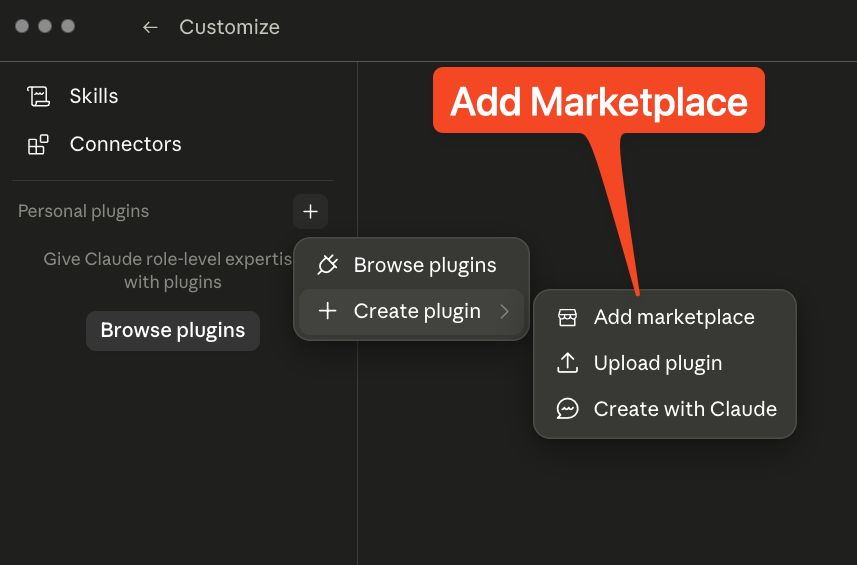
Under Personal plugins, click the + button, hover Create plugin, then choose Add marketplace.
Step 4 — Add from a repository
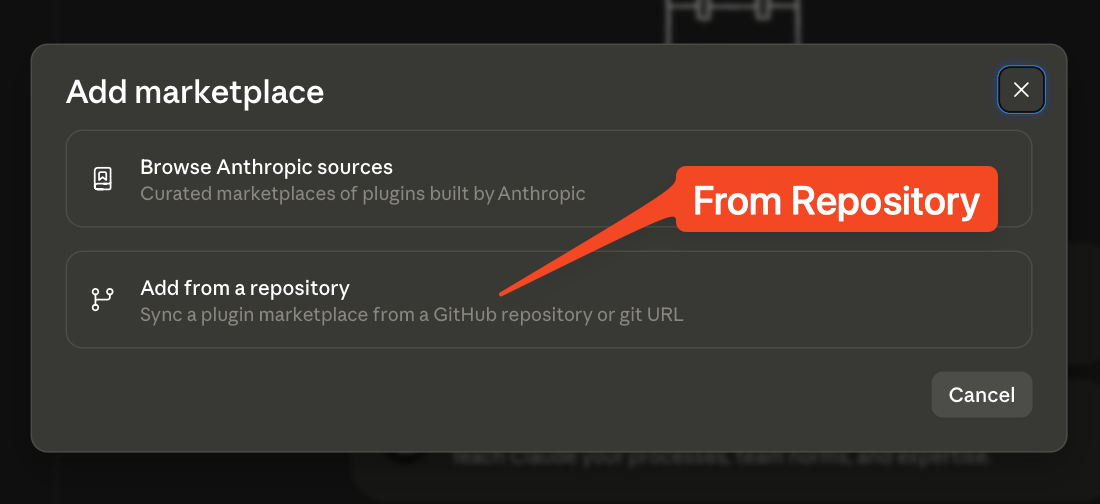
In the Add marketplace dialog, choose Add from a repository to sync a marketplace from a GitHub URL.
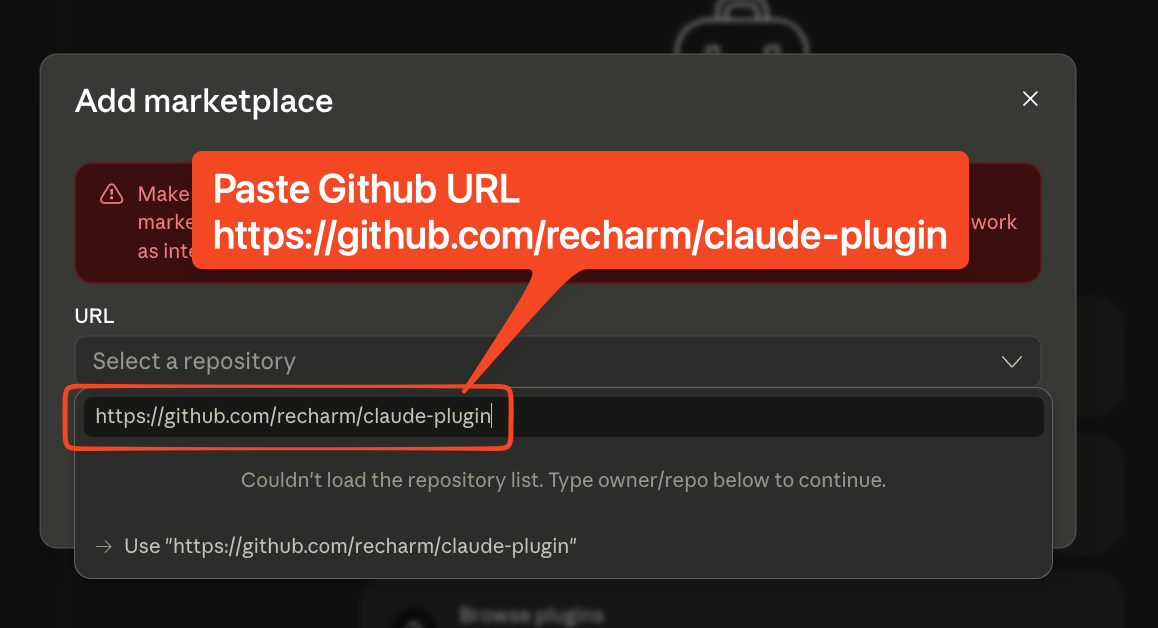
Step 5 — Paste the Recharm GitHub URL
Paste the Recharm plugin repository URL into the field:
https://github.com/recharm/claude-plugin
If the repository list doesn’t load, just click Use “https://github.com/recharm/claude-plugin” to continue.
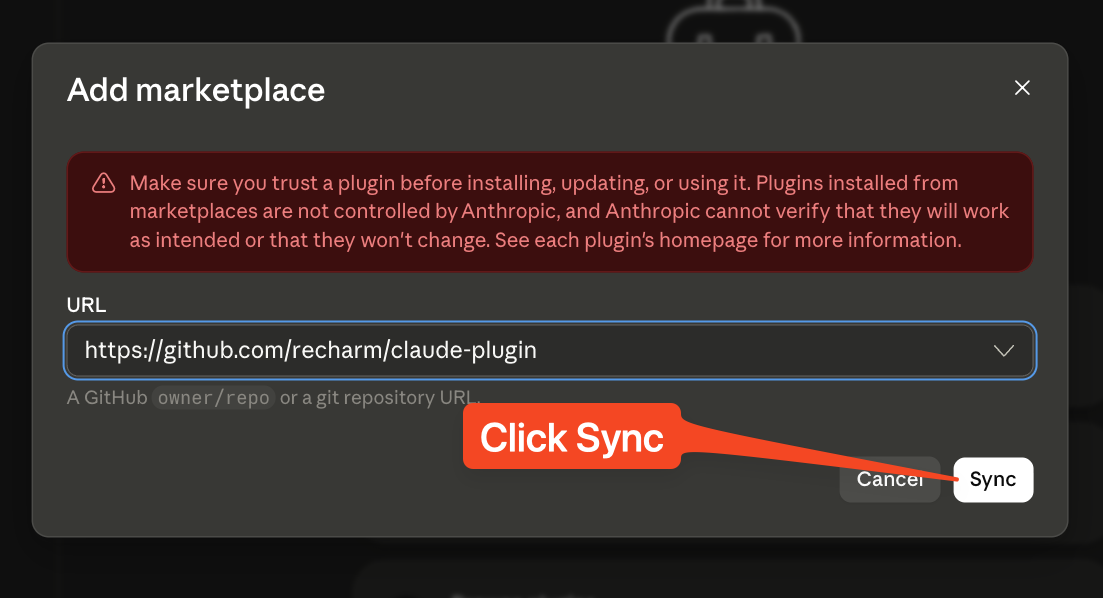
Step 6 — Sync the marketplace
Confirm the URL is filled in and click Sync.
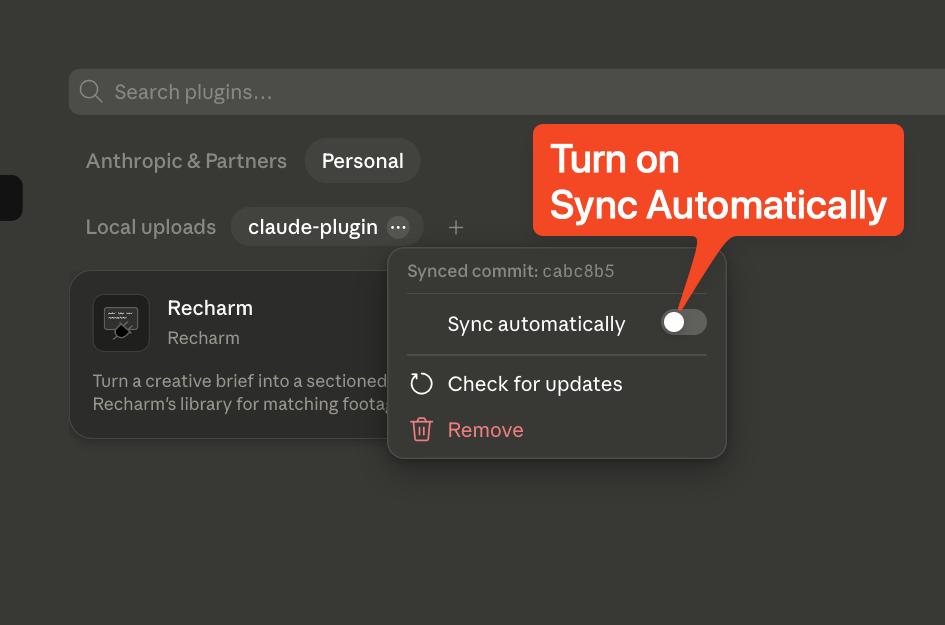
Step 7 — Turn on automatic sync (recommended)
Open the ⋯ menu next to claude-plugin and turn on Sync automatically. This keeps the Recharm plugin up to date as we ship new features.
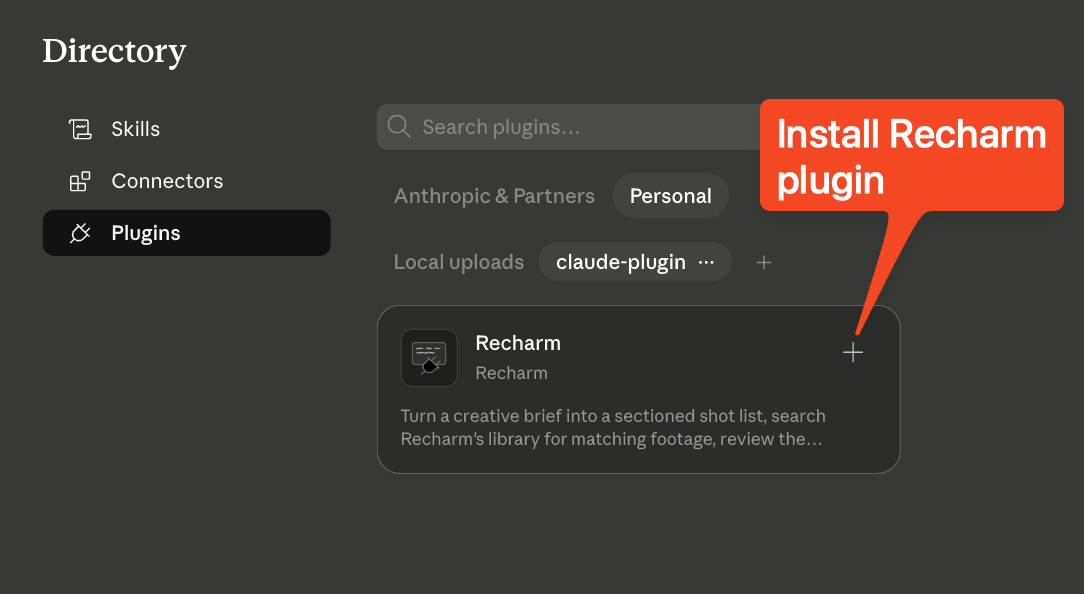
Step 8 — Install the Recharm plugin
Go to Plugins in the directory. Find the Recharm card under Local uploads and click the + to install it.
Step 9 — Open the Recharm connector
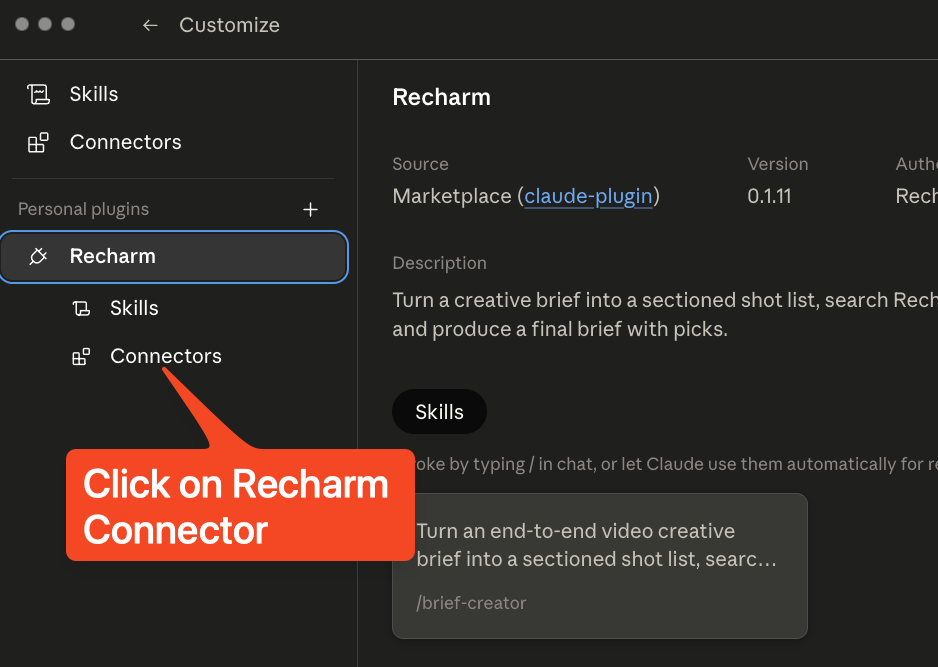
Back under Personal plugins → Recharm, click Connectors.
Step 10 — Install the connector
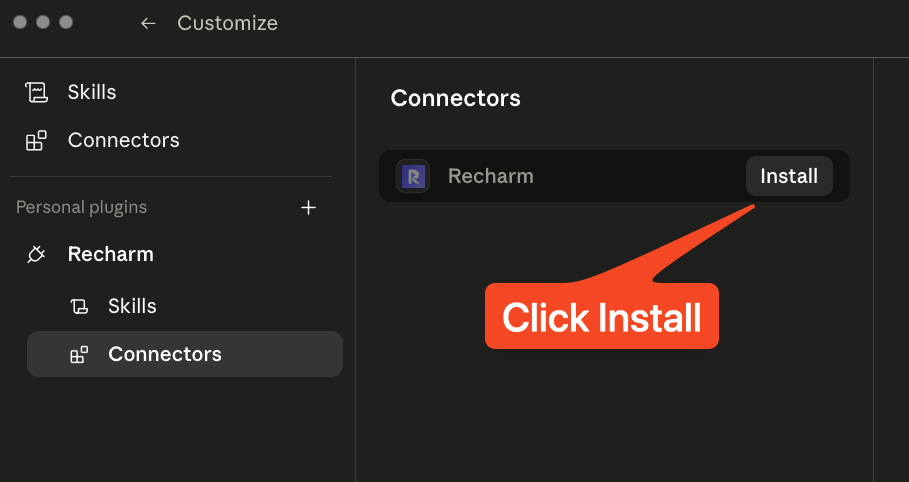
Click Install next to the Recharm connector.
Step 11 — Connect to Recharm
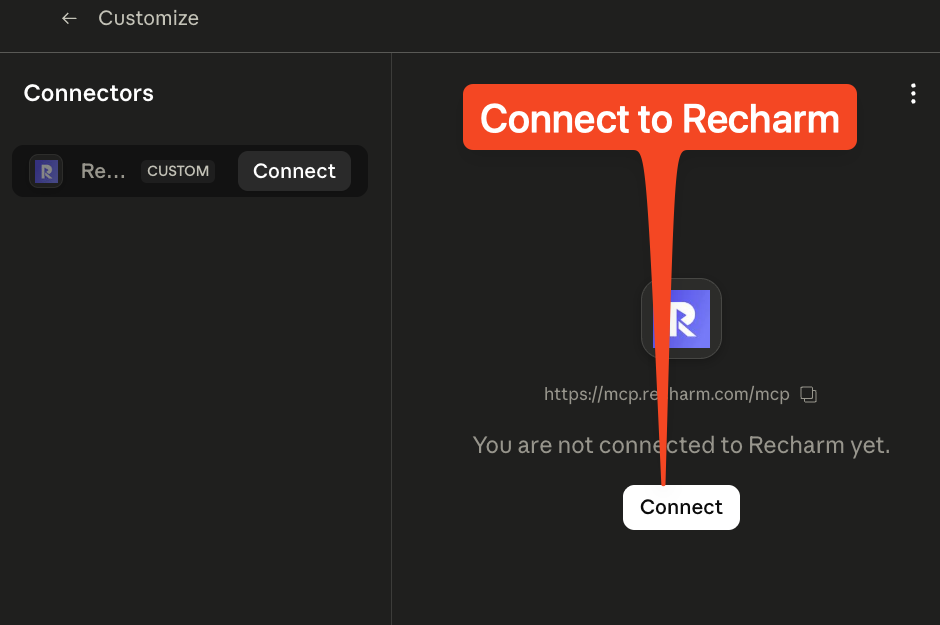
Click Connect. This points to https://mcp.recharm.com/mcp and starts the authorization flow.
Step 12 — Authorize Claude
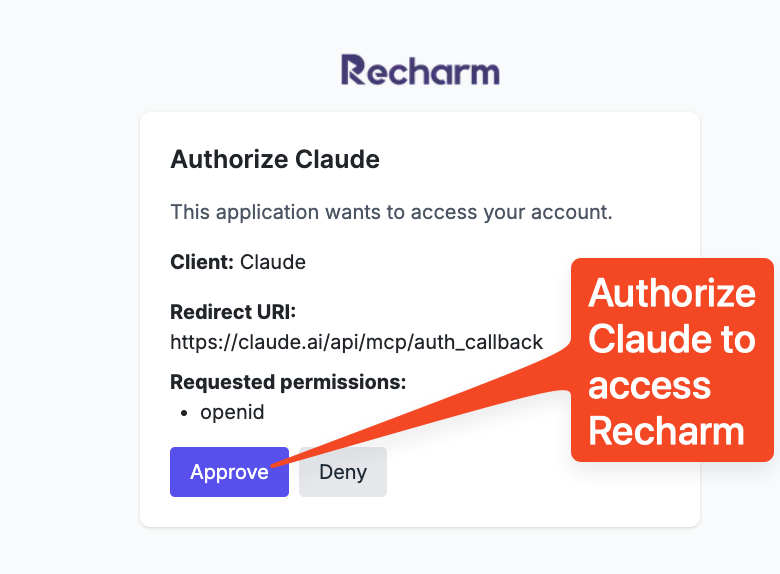
A Recharm authorization page opens in your browser. Click Approve to let Claude access your Recharm account.
This is why you need to be logged into Recharm beforehand.
Step 13 — Reopen the Claude app
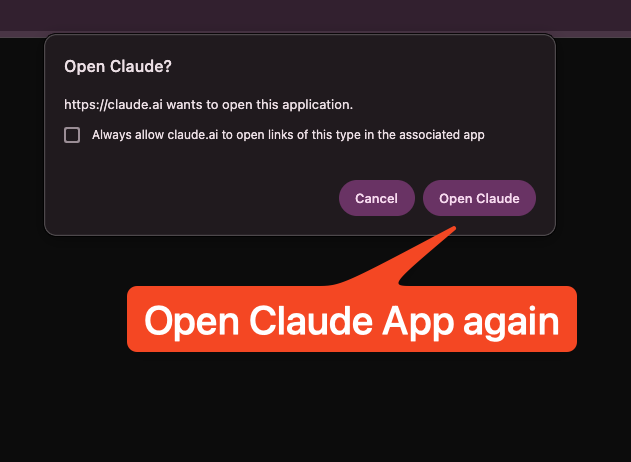
Your browser will ask to hand you back to the Claude app. Click Open Claude to return.
Step 14 — You’re all set! 🎉
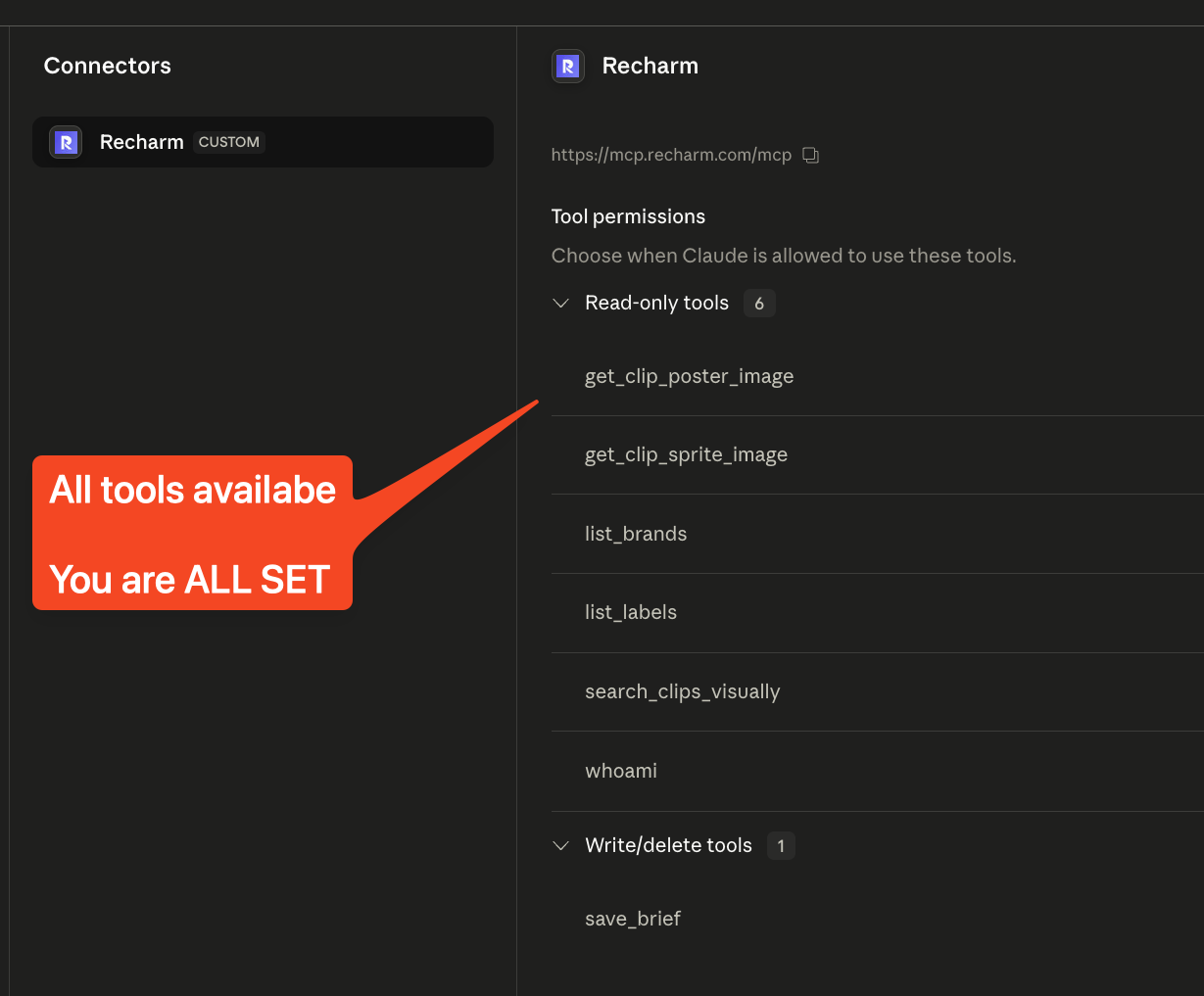
Back in the connector view, you’ll see all Recharm tools available — search_clips_visually, list_brands, list_labels, save_brief, and more. The Recharm plugin is now installed and connected.
What’s next?
Try the Recharm skills directly in chat — for example, type /brief-creator to turn a creative brief into a sectioned shot list with matching footage from your Recharm library.
Need help? Reach out to the Recharm team and we’ll get you sorted.